Editors usually provide Auto-Save on a file.VSCode Auto Save option to save the changes.
Auto Save feature works like saving the changes automatically once the editor loses focus or a file or editor is closed.
This is an tip that the developer must know when working with Atom Editor.
How to autosave code in Visual Studio Code editor?
There are multiple ways, we can do this by configuring settings.
First, Use settings.
- In the left bar, click on the manage icon > Settings
- type “auto save” in the search bar
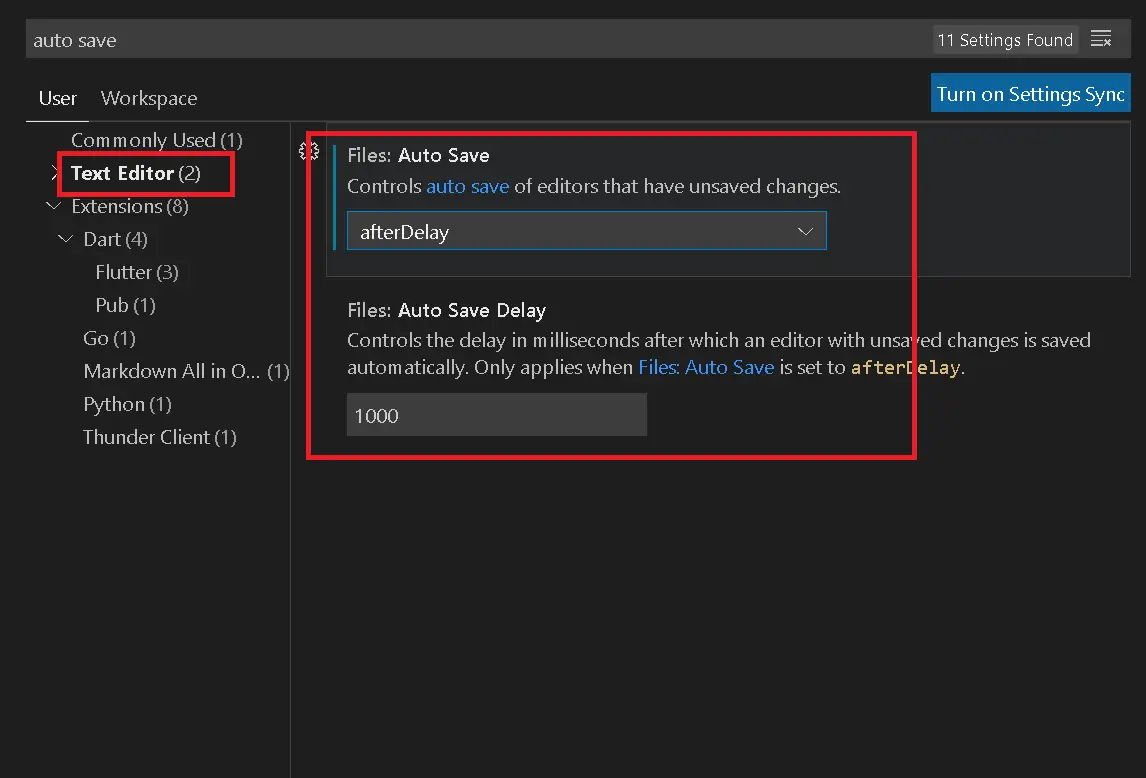

It contains the below options.
Files: Auto Save: afterDelay - save the unsaved changes automatically with the delay parameter
Files: Auto Save Delay: 1000 - save the changes after 1000 milliseconds.
The second way, use the autosave option in the File Menu.
Following are steps to enable the Auto Save.
File>Auto SaveIt is checked and enabled automatically.
These changes are saved and applied to the editor permanently. W Third ways, project-specific settings
Create a
.vscodefolder under a projectCreate a file settings.json
update the
setttings.jsonfile with the below configuration
  {

      "files.autoSave": "afterDelay",
      "files.autoSaveDelay": 1000,

  }
- Restart VSCode to make changes.